Importing Google Reviews
Already have reviews on your Google Business Profile? Bring them into PraisePipeline so your review showcase and dashboard aren’t starting from zero.
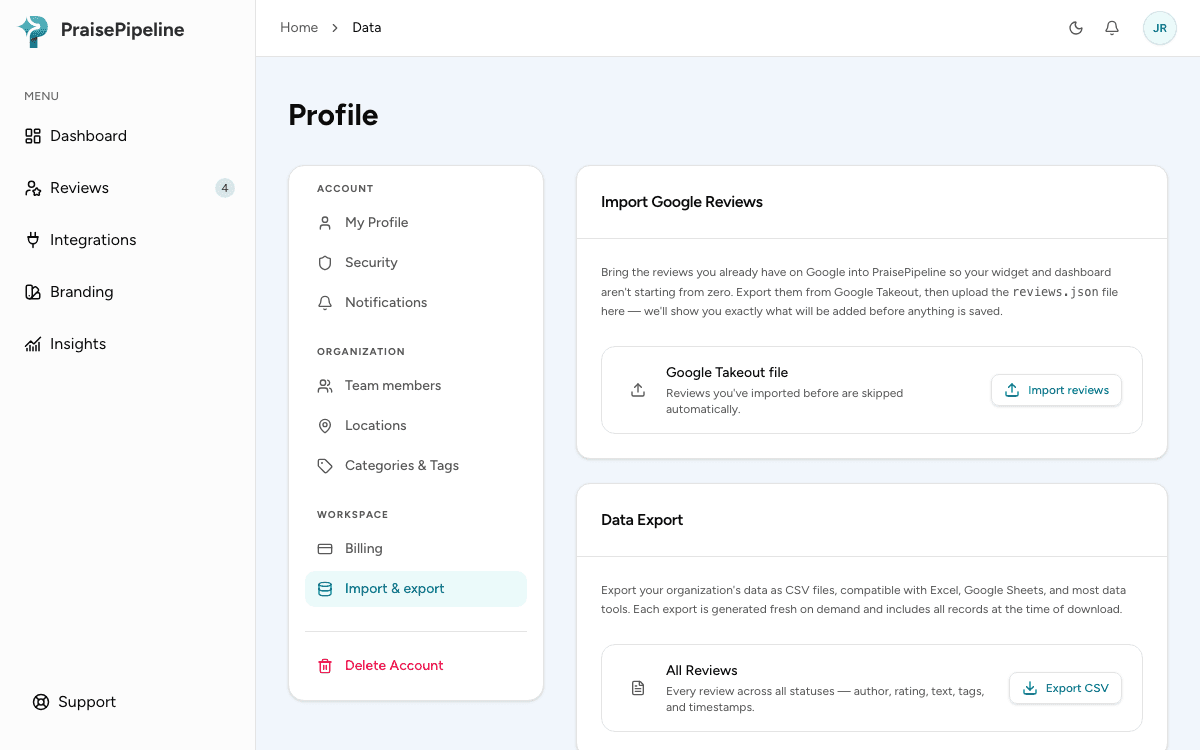
Import is an admin-only action, found under Profile → Import & export.
Step 1: Export your reviews from Google
Google doesn’t offer a reviews export from the Business Profile dashboard itself — it comes from Google Takeout, which is a JSON file rather than a spreadsheet. PraisePipeline reads that file directly, so you don’t need to convert it.
- Go to takeout.google.com while signed in to the Google account that manages your Business Profile.
- Click Deselect all, then scroll down and tick Business Profile only.
- Click Next step, keep the defaults (one-time export,
.zip), and click Create export. - Google emails you when the archive is ready — usually within a few minutes for a Business Profile export, though it can take longer.
- Download and unzip it, then open the folder for your location:
Takeout/
└── Google Business Profile/
    └── account-<long number>/
        └── location-<long number>/
            ├── reviews.json               ← select this
            ├── reviews-<long id>.json     ← and this
            └── reviews-<long id>.json     ← and this (there may be several)
Select every review file — not just reviews.json
This is the step people get wrong. Google splits a location’s review history across several files: reviews.json plus any number of files named reviews- followed by a long ID. Each one holds different reviews. If you upload only reviews.json, you’ll import only part of your history.
So in the location folder, select every file whose name starts with reviews — all at once. Sorting the folder by name groups them together; on macOS click the first and shift-click the last, on Windows the same.
The folder also contains photos, posts (localPost-…), Q&A and settings. You can ignore those — and if a stray one slips into your selection, the preview names it and carries on with the rest.
If you manage several locations, each has its own folder with its own set of review files (see Multiple locations below).
Step 2: Upload the file
- In the dashboard, go to Profile → Import & export.
- Under Import Google Reviews, click Import reviews and choose all of your
reviews*.jsonfiles at once. - PraisePipeline checks the file and shows you a preview — nothing is saved yet.
Step 3: Review the preview
The preview breaks the file down into:
| Row | Meaning |
|---|---|
| Ready to import | New reviews that can be added. All are ticked by default; the Import button shows how many you currently have selected. |
| Possible duplicate | Looks like a review you already collected through PraisePipeline (same name and rating, similar text). Included by default — deselect any you don’t want. |
| Already imported | You’ve imported this review before. Skipped automatically. |
| Over trial limit | Beyond your trial’s import allowance. See Trial limit. |
| Skipped — duplicate | The same review appeared in more than one of your selected files (Takeout pages can overlap). Counted once, imported once. |
| Skipped — no review text | Rating-only reviews (a star rating with no comment). Listed in the preview, but not imported — see Star-only reviews below. |
| Skipped — couldn’t be read | Malformed entries. Rare; the rest of the file still imports. |
Then choose:
- Location — only shown if you have more than one. Takeout gives you one folder per location, so import each location’s files to its own.
- After import — either Approve all (they’re already public on Google, so they can go straight to your review showcase) or Send to moderation (each one lands as pending for you to approve, like any other review).
Click Import to confirm.
What gets imported
For each review: the reviewer’s display name, the star rating, the review text, and the date it was left on Google. The original date is kept, so your review showcase’s “most recent” ordering and your Insights trends stay accurate.
Imported reviews show a source of Google import in the dashboard and in the Insights source breakdown. They don’t count toward your review-request conversion rate — they didn’t come from a request — and they don’t trigger new-review notifications.
Owner replies you’ve written on Google aren’t imported.
Star-only reviews aren’t imported
Plenty of Google reviews are just a star rating with no written comment — in a typical export it’s a quarter of them. Those aren’t imported, and the preview tells you how many were skipped.
The reason is simple: PraisePipeline collects and displays written reviews. A rating with no words has nothing to show in your review showcase and nothing to moderate, so importing it would only pad a number.
This means your PraisePipeline review count can be lower than the count on your Google listing — that’s expected, not a failed import. Your Google rating and Google review count are unaffected; they stay exactly as they are on Google. Everything with written feedback comes across.
Re-uploading is safe
PraisePipeline remembers which Google reviews it has already imported. Uploading the same files again — or a newer export that contains the same reviews plus new ones — only adds what’s new. Selecting files that overlap is fine too. Nothing is duplicated.
What import can’t detect
If a customer left a review through your PraisePipeline link and then posted it on Google (which is exactly what the Google funnel encourages), that review exists in both places. Import can’t know for certain those two are the same review, because Google doesn’t share the reviewer’s email. It flags likely matches as possible duplicates in the preview so you can deselect them — but it’s a best guess based on name, rating and text, so check that list before confirming.
Trial limit
During your free trial you can import up to 25 reviews in total — enough to fill every showcase layout. If your file has more, the preview tells you: the 25 most recent import now, and the rest are marked over trial limit.
Once you’ve upgraded, upload the same files again and the remaining reviews import — the ones you already have are skipped automatically. Paid plans have no total limit (a single import is capped at 1,000 reviews; import in batches if you have more).
Multiple locations
Each location-… folder holds one location’s reviews. Import that folder’s review files together, pick the matching location in the preview, then repeat for the next folder. Reviews are attributed to the location you chose, in the dashboard and in per-location Insights. See Multiple locations for how locations work.
Troubleshooting
- “That doesn’t look like a Google Takeout reviews file” — make sure you picked a review file (
reviews.jsonor areviews-…json) from inside alocation-…folder, not one of the archive’s other files (posts, Q&A, photos, settings). - A file is listed as “couldn’t be read” — that’s a file in your selection that isn’t a review file (Q&A, settings, and so on). The named file is left out and everything else still imports. If it was a
reviews…file, check you didn’t convert it to a spreadsheet — the import takes the Takeout JSON as-is. - I imported but I’m missing reviews — two common reasons. First, you may have uploaded only
reviews.json; go back and select everyreviews*.jsonfile in the folder (re-importing is safe and won’t duplicate what’s already there). Second, star-only reviews aren’t imported. - My PraisePipeline count is lower than the number Google shows — expected if some of your Google reviews are star-only. See Star-only reviews aren’t imported.
- My export doesn’t have a Business Profile folder — you need to be signed in to the Google account that manages the profile (an owner or manager), not just any account.